
1 Sam is Booking Appointments
Every lead Sam is actively working toward a booked call.

Five lists. Build them once — they keep themselves updated forever.
Two lists show what your AI team is doing. Three show you where a lead stands.
Every lead Sam is actively working toward a booked call.

Every lead Mia is still chasing — for as long as it takes.
Leads who have actively asked you not to reach out anymore.
Everyone who isn't a lead — lenders, attorneys, title, contractors. Your rolodex, if you're old enough to know what that is.
The ones no AI can move. These need you.
The list of leads Sam is engaging to get property info and book a call on your calendar.
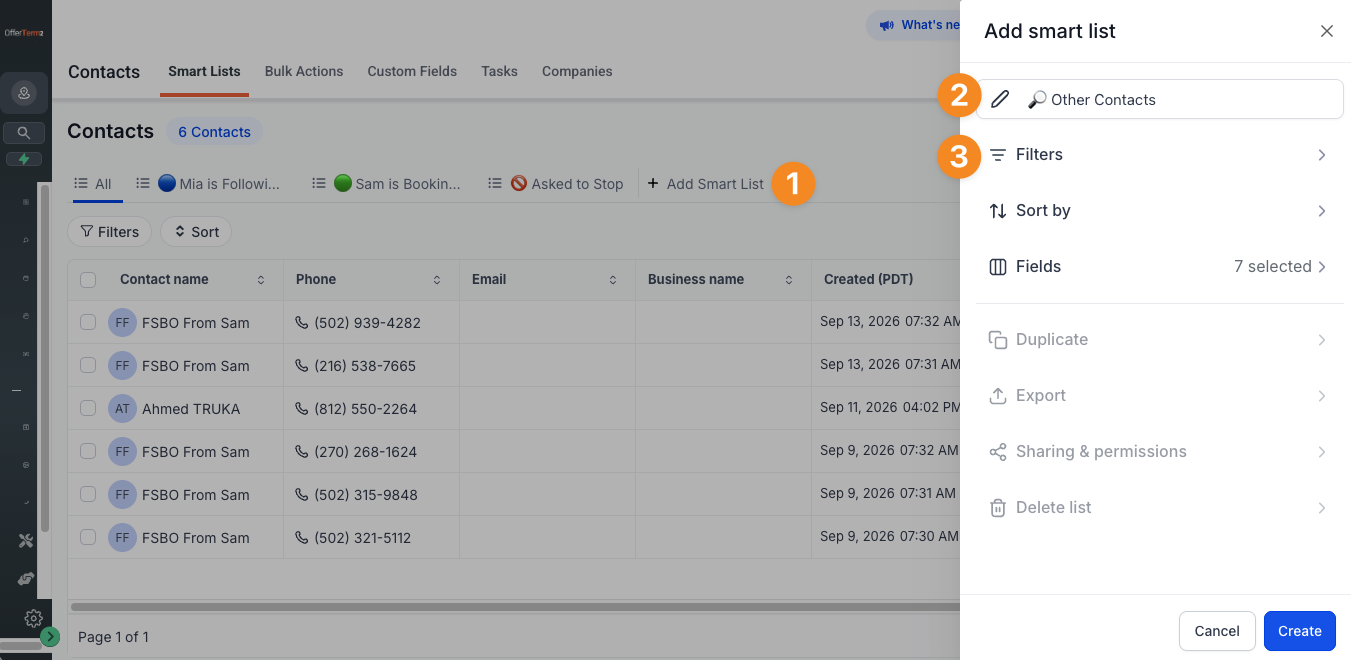
In the Contacts menu where you see your leads, click + Add Smart List. Paste this in as the name, then click Filters.
🟢 Sam is Booking Appointments
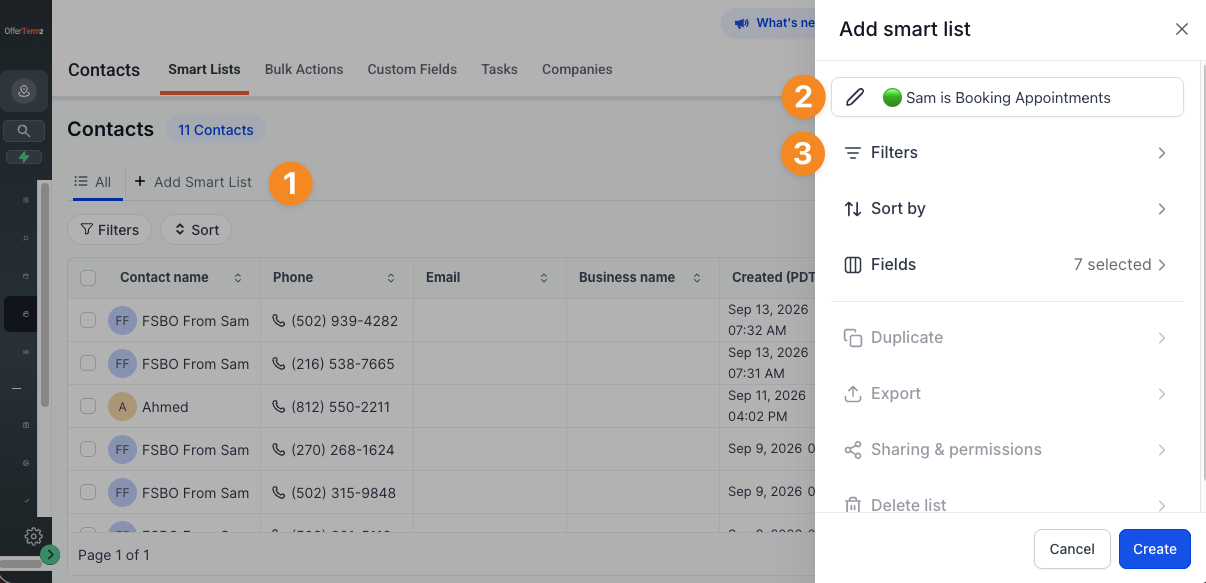
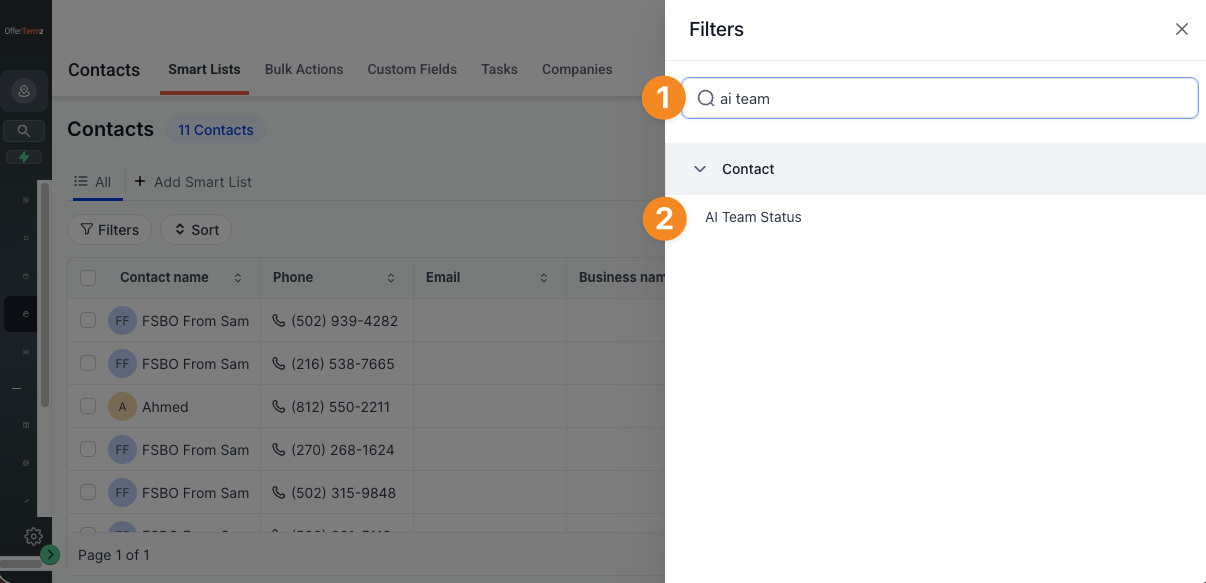
In the search box, type ai team status — type it, don't paste, so you see the fields appear as you go. Then pick AI Team Status from the list.
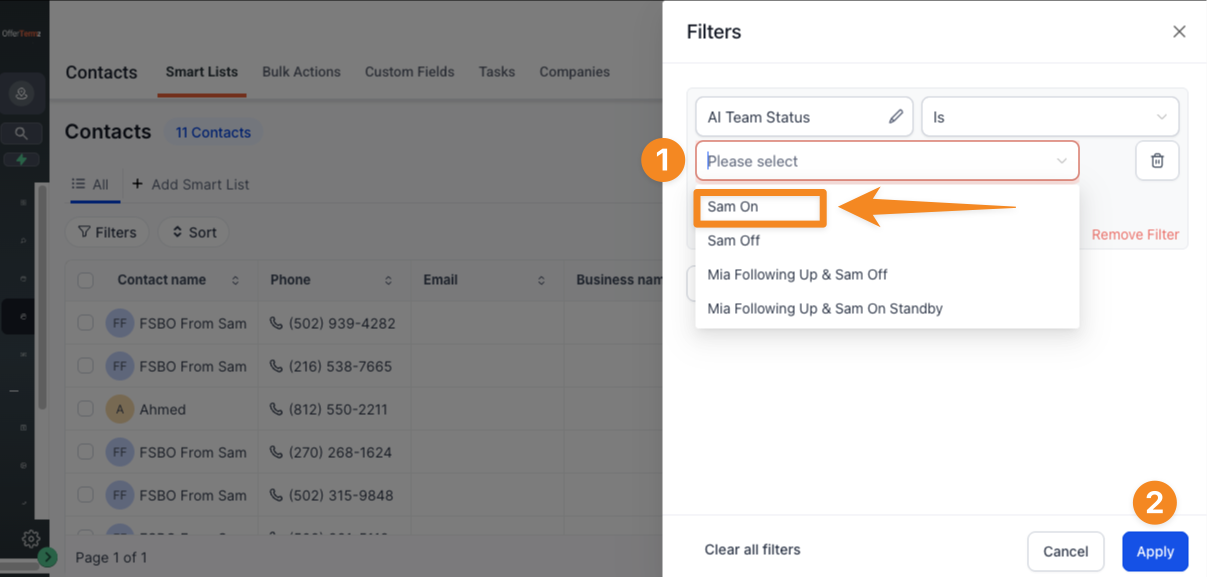
You've got a filter. Set it to AI Team Status → IS → Sam On, then click APPLY.
Click CREATE.
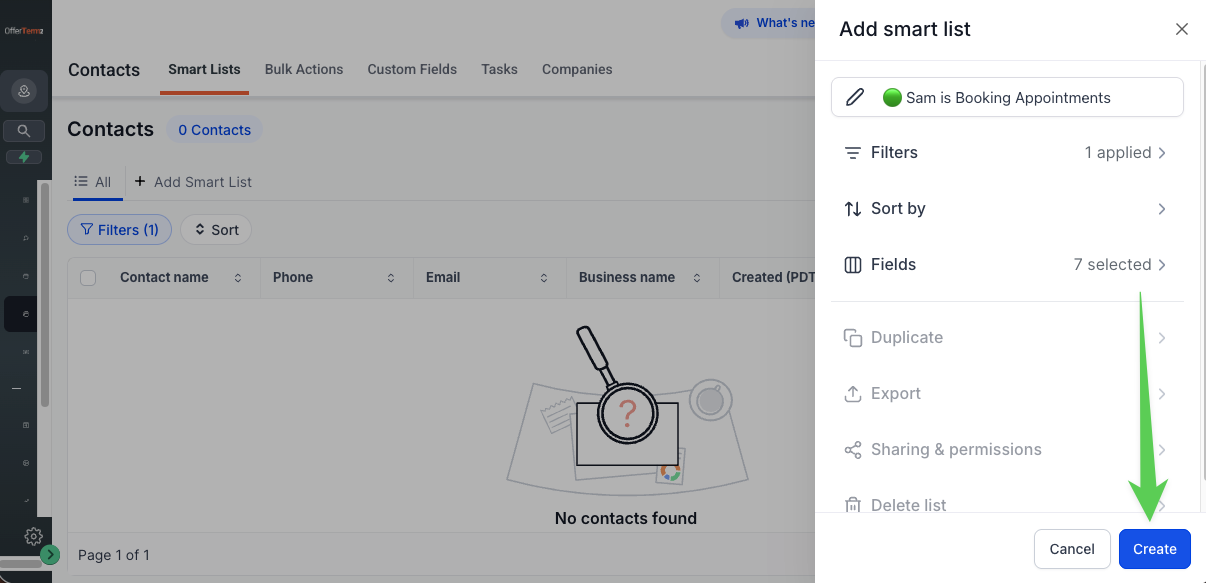
That's the whole trick. You asked for the leads Sam is switched on for — so that's who shows up. Pick Sam Off and you'd get the exact opposite: the ones he isn't touching.
Same two boxes. Completely different list.
That's your first smart list. From now on it fills itself with every lead whose AI Team Status is Sam On, and empties itself when that changes. You did it with two dropdowns:
Click All List. That puts you back on a clean slate — a fresh filter to build the next list from.
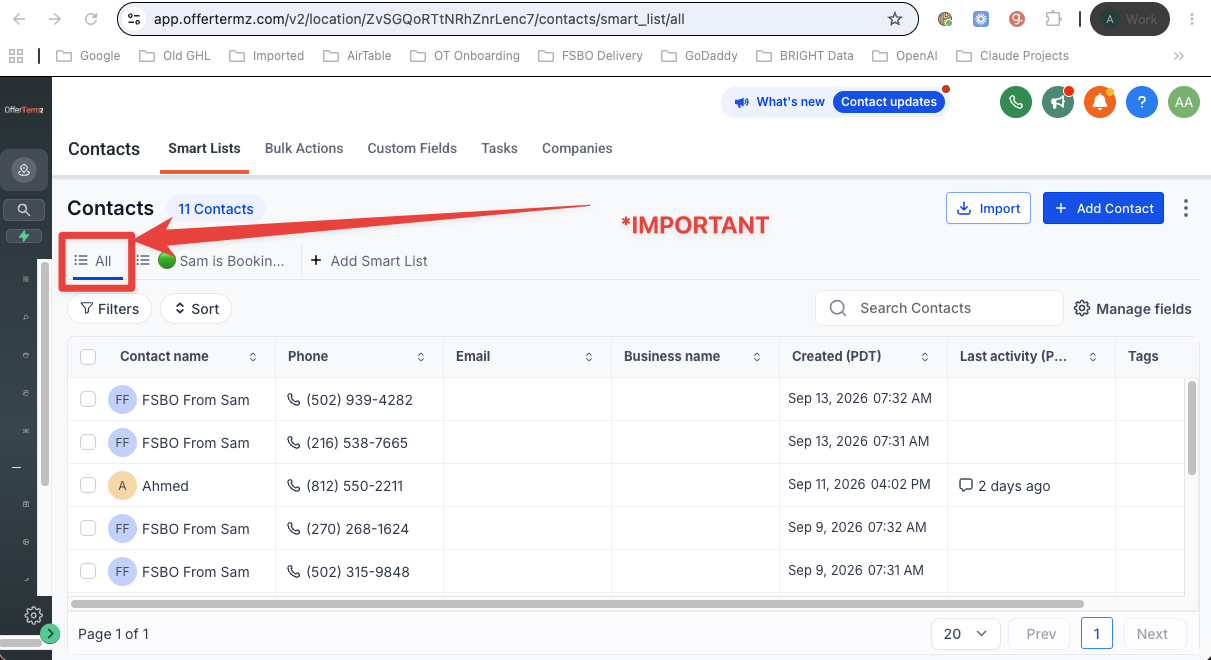
Intro line for Mia's list. your copy
In the Contacts menu where you see your leads, click + Add Smart List. Paste this in as the name, then click Filters.
🔵 Mia is Following up with
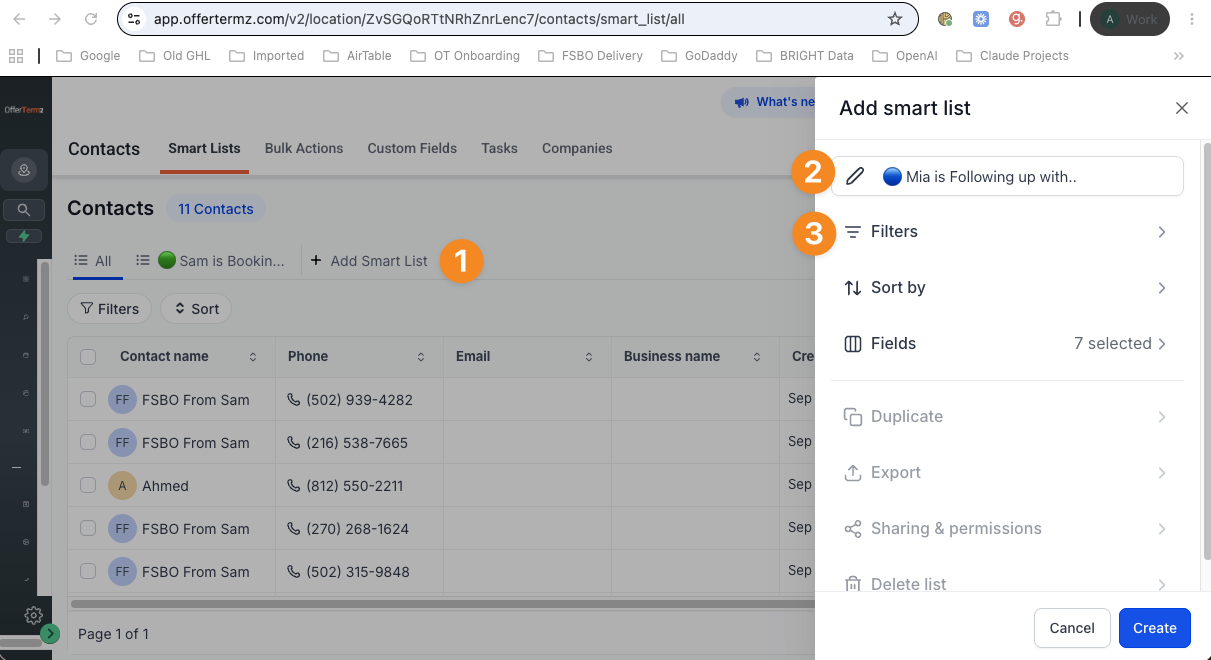
Step 2 instruction. your copy
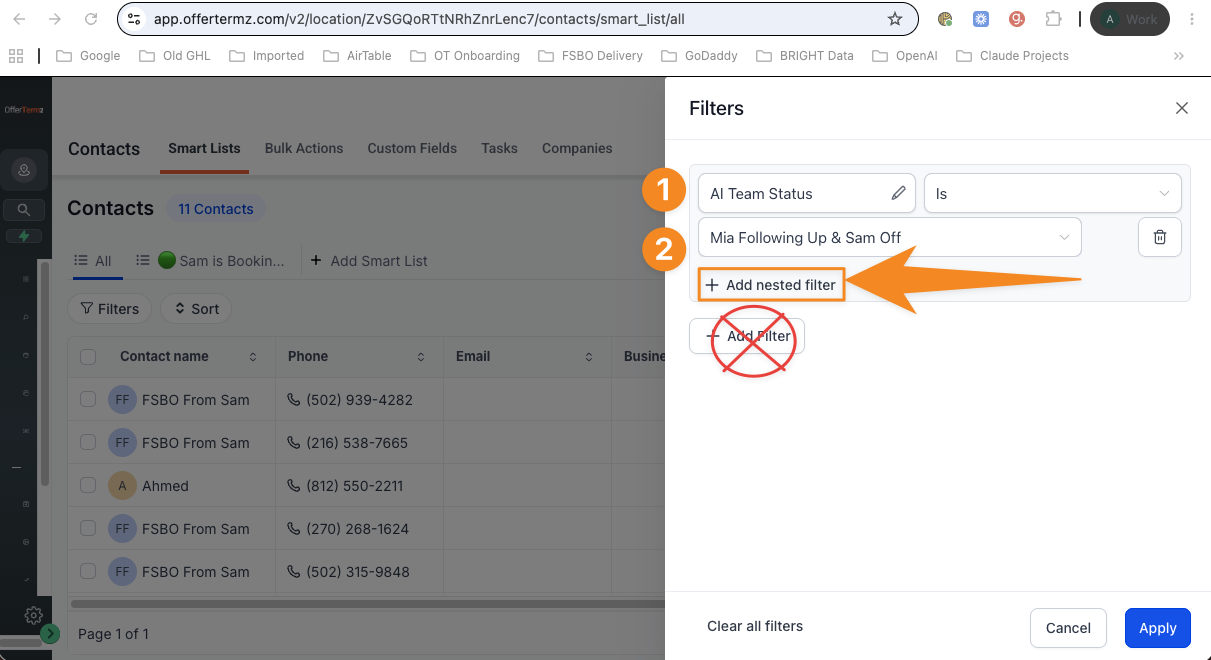
Step 3 instruction. your copy
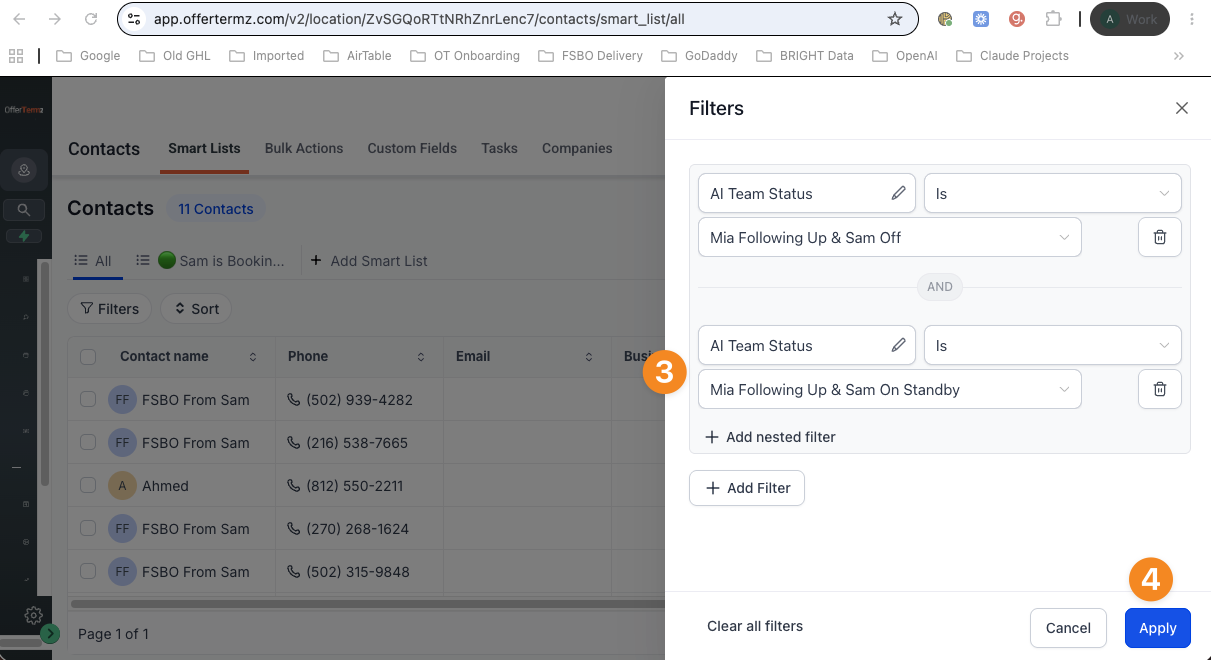
Step 4 instruction. your copy
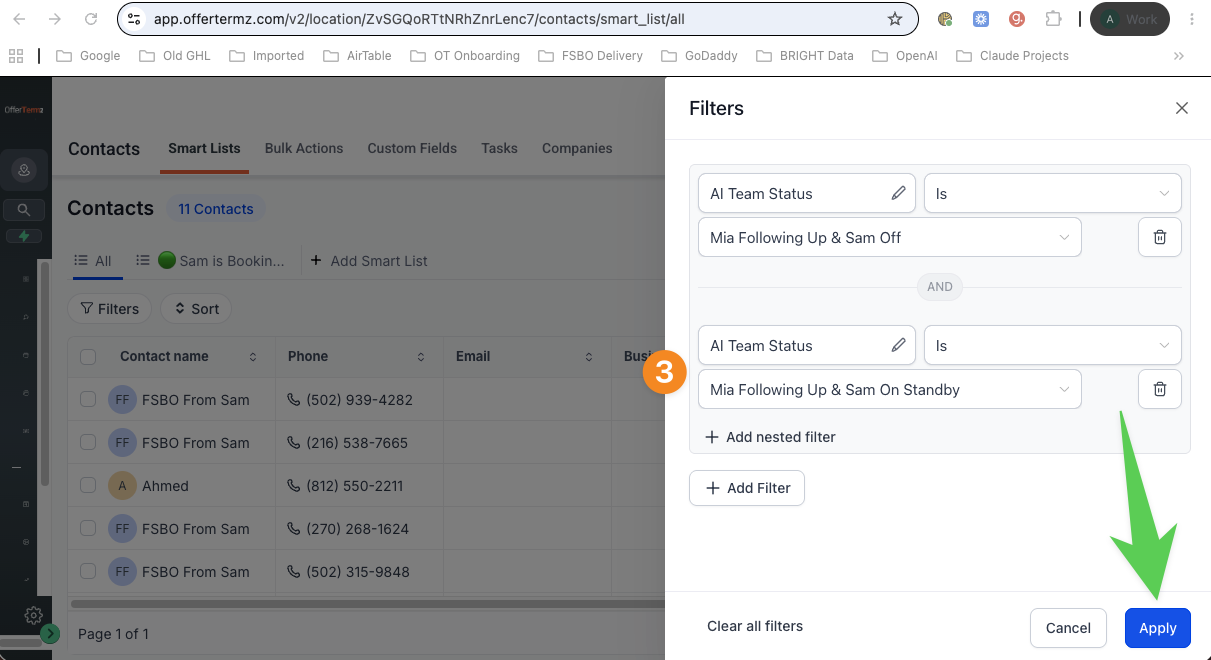
Step 5 instruction. your copy
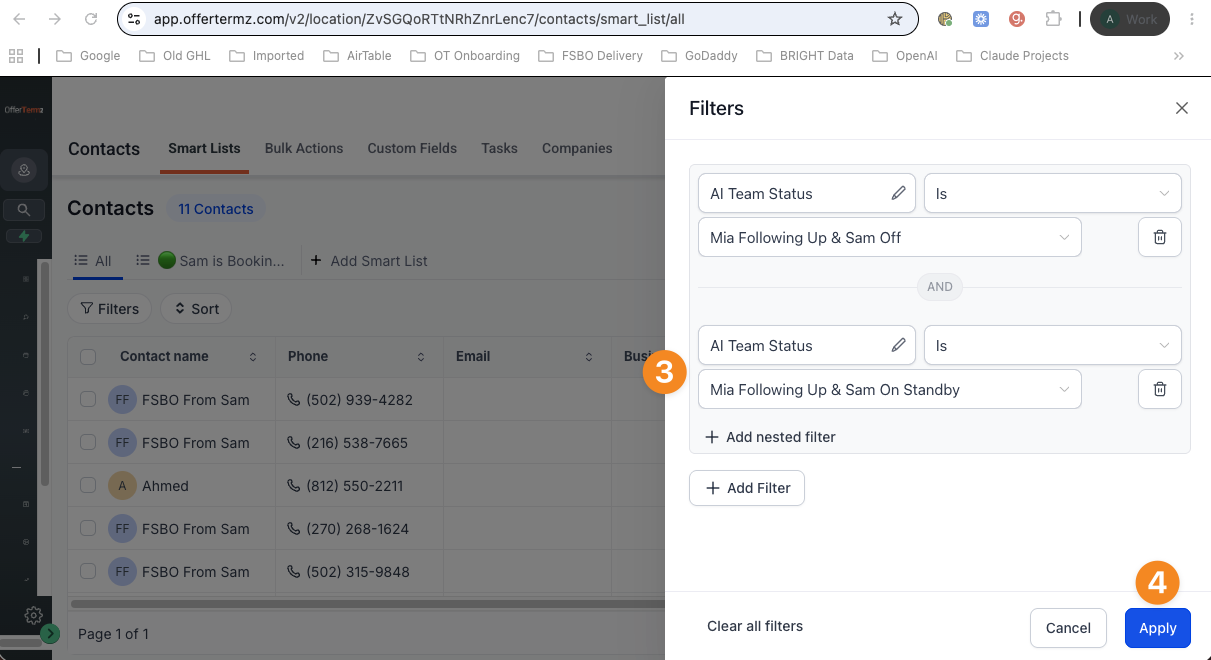
Step 6 instruction. your copy
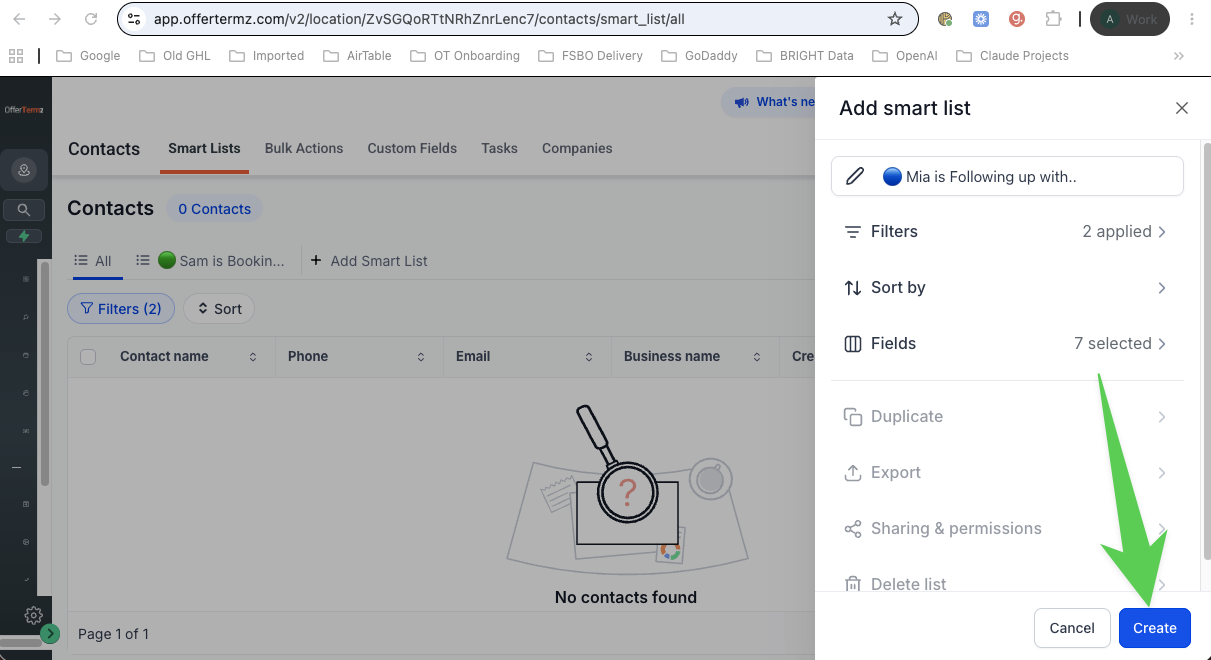
You built a bigger filter this time — two boxes instead of one. Now you'll see all the leads Mia is following up with, whether Sam is off or on.
Mia's list is live and filling itself. Here's what you told it to look for:
You can now see every lead Sam is booking appointments with, or every lead Mia is following up with, any time you want. One click on the list and they're all there.
And here's the part worth knowing: these are smart lists. They update themselves, in seconds, all day, forever. Leads walk onto them and walk off them on their own as things change. You will never open one to clean it up. You're done with these two for good.
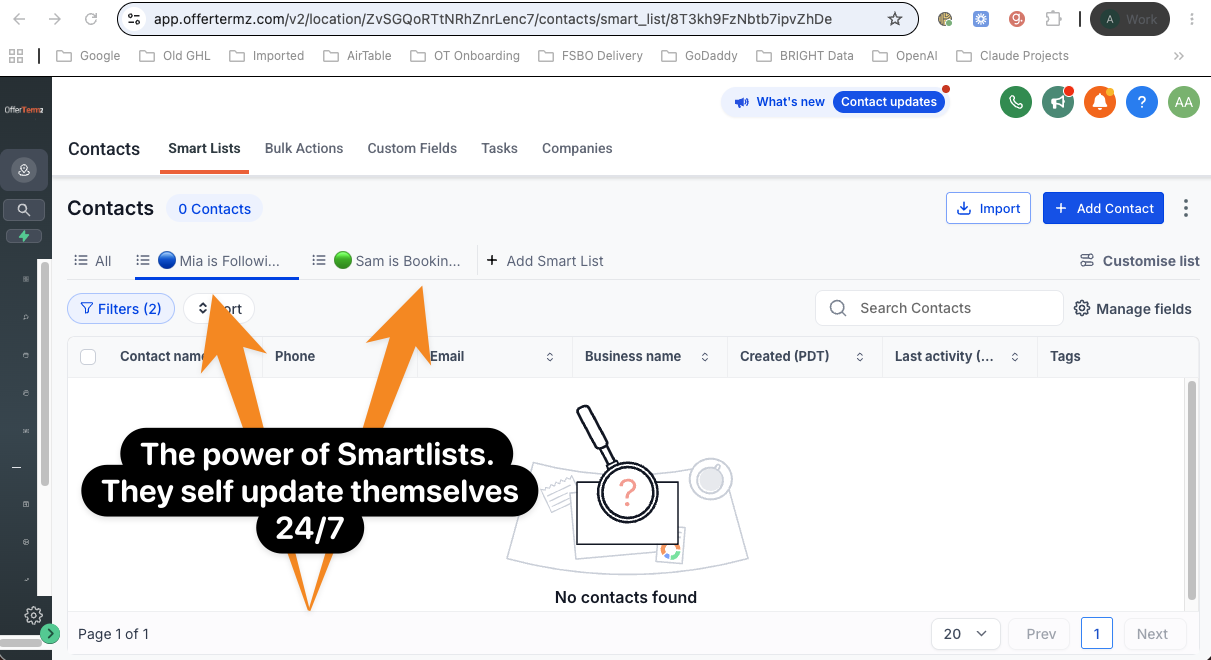
Click All List. That puts you back on a clean slate — a fresh filter to build the next list from.
Leads who have actively asked you — or any of your AI team — not to reach out anymore.
In the Contacts menu where you see your leads, click + Add Smart List. Paste this in as the name, then click Filters.
🚫 Asked to Stop
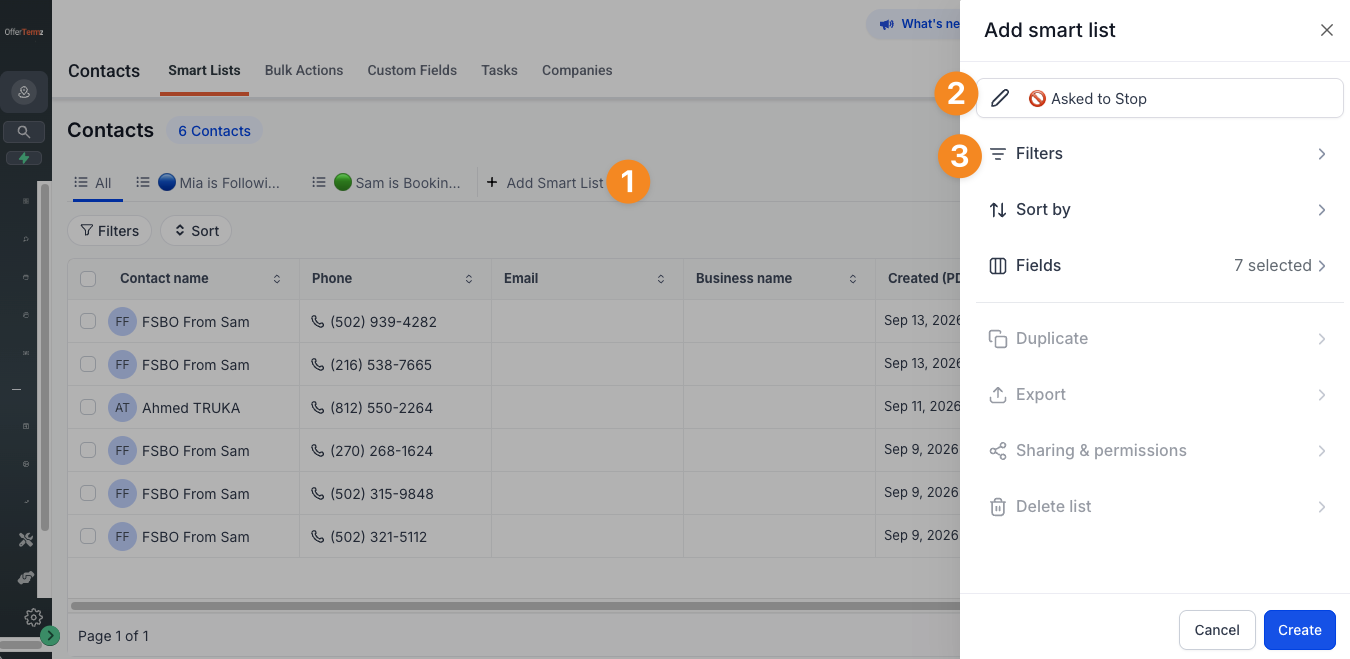
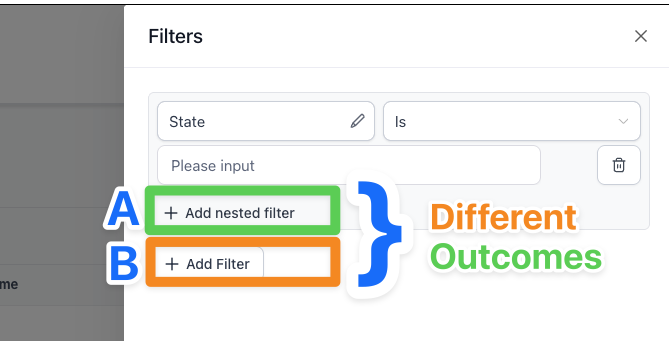
In the search box, type SMS DND and select it when it comes up. Then click + Add Filter — not the button above it. Those two do different things. Check the image if you're not sure.
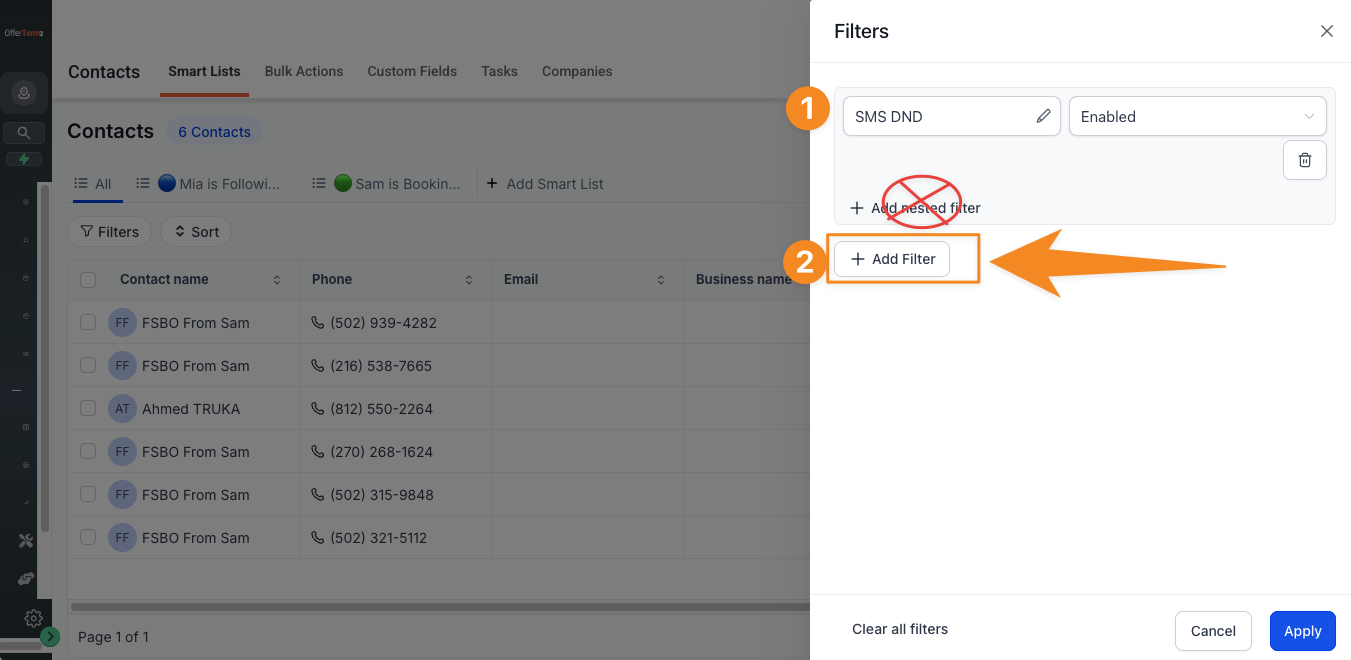
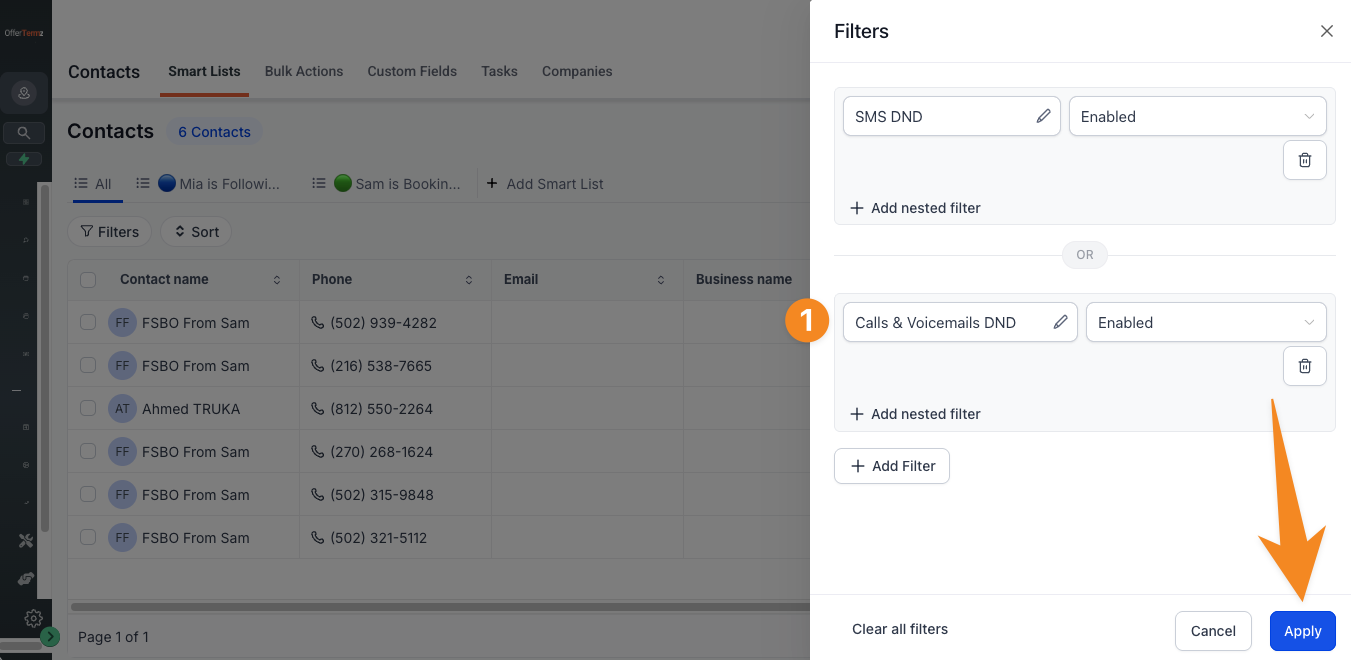
A new box appears saying Please Select. Click it and the search box comes back. Type Calls & Voicemails DND, select it when it shows, then click Apply. Hope you caught it — that's another filter 1 OR filter 2. Ice cream or sprinkles.
Click Create.
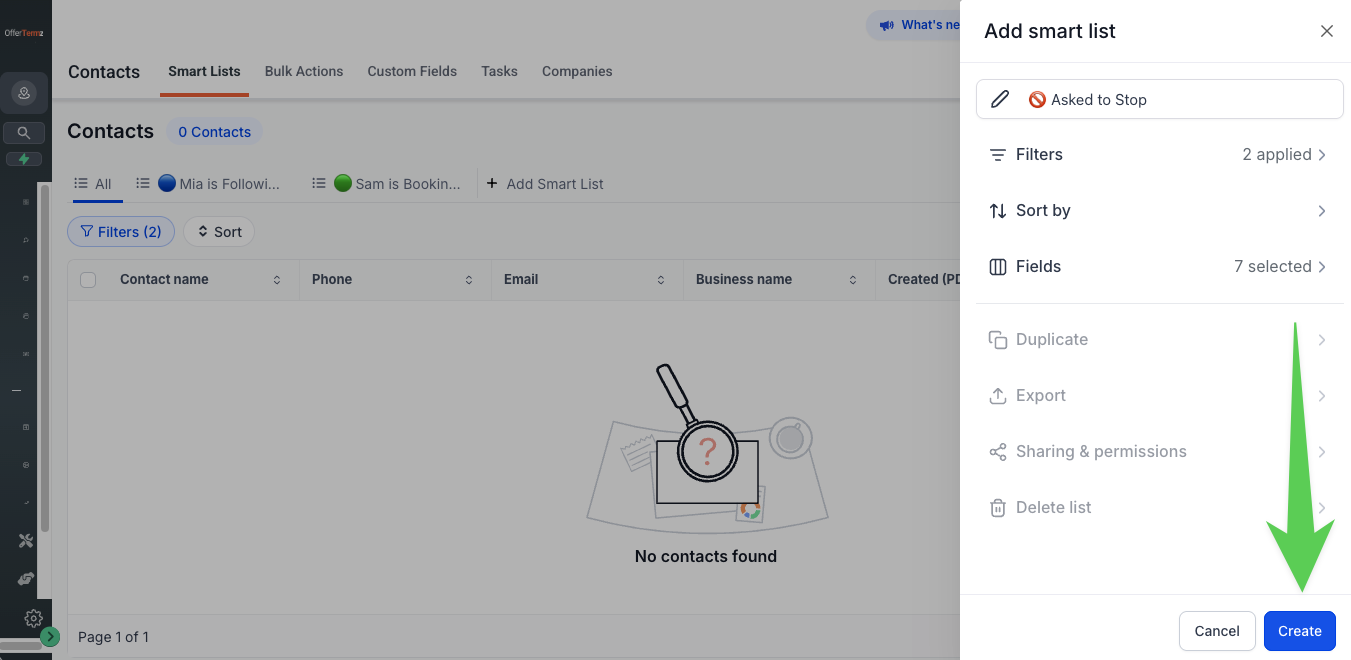
Anyone who told you or your AI team to stop now lands here on their own — whether they said it by text or by phone.
Click All List. That puts you back on a clean slate — a fresh filter to build the next list from.
Everyone who isn't a lead — lenders, attorneys, title, contractors. Your rolodex, if you're old enough to know what that is.
In the Contacts menu where you see your leads, click + Add Smart List. Paste this in as the name, then click Filters.
🔎 Other Contacts
On hold. blocked
You've now separated everyone in your CRM who is not a seller and not a buyer — all the people who support your business rather than grow it. Contractors, plumbers, lawyers, private money lenders, other investors you want to stay in touch with.
They're not selling. They're not buying. They're Other Contacts.
Click All List. That puts you back on a clean slate — a fresh filter to build the next list from.
You're about to build the biggest and most important list of the five.
Waiting on YouLeads Sam is not touching.
Leads Mia is not touching.
Leads that turn into lost deals if you don't manage them well.
+ Add nested filter creates a filter with AND requirements. Filter 1 AND filter 2 — both have to be true for that lead to show up.
Show me ice cream AND sprinkles. Only show me things that have both. If either one is missing, it doesn't count. I don't want to see it.
+ Add Filter creates a filter with OR requirements. Filter 1 OR filter 2 — either one can be true for the lead to show up.
Show me ice cream OR sprinkles. I don't care if it's a jacket with ice cream on it — show it to me. Or a pile of sprinkles spilled on the floor — show it to me. As long as ice cream OR sprinkles are showing, show it to me.
The ones no AI can move. These need you. your copy
In the Contacts menu where you see your leads, click + Add Smart List. Paste this in as the name, then click Filters.
⚪ Waiting on You
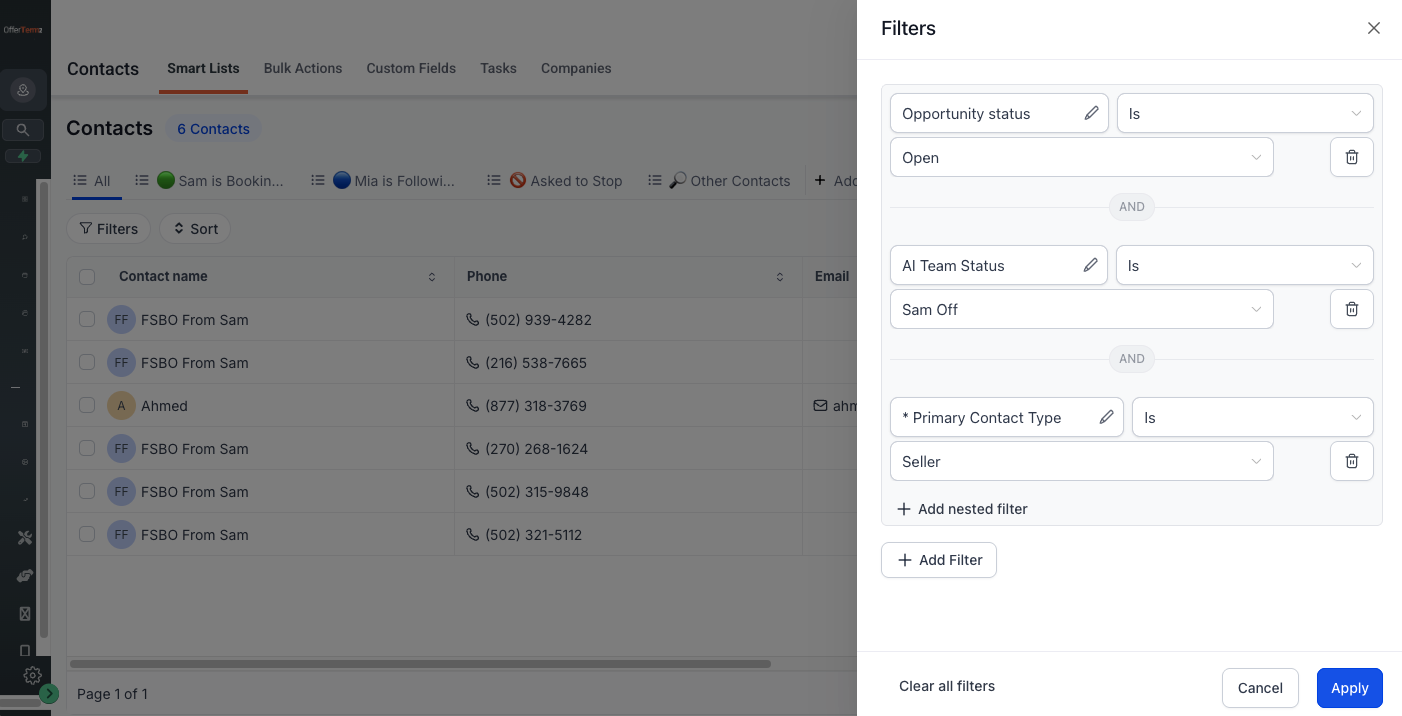
Step 2 instruction. your copy
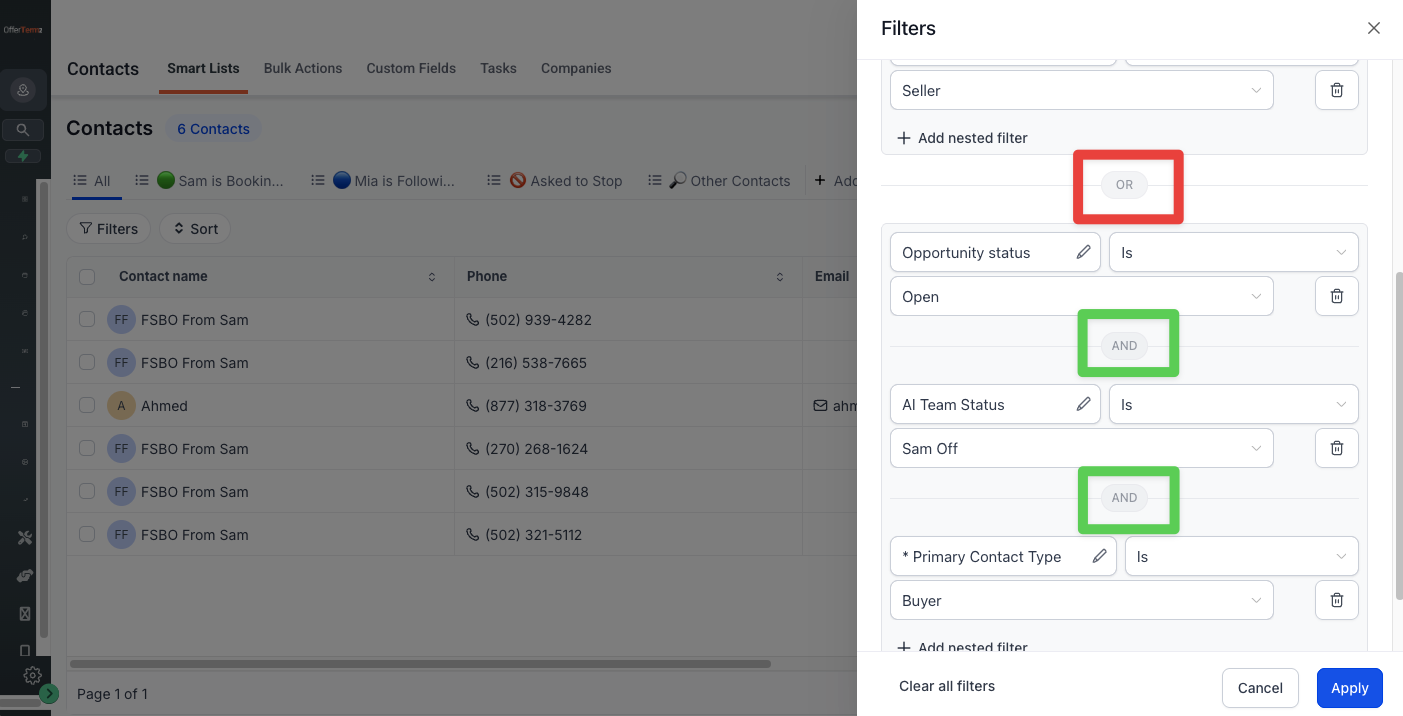
Step 3 instruction. your copy
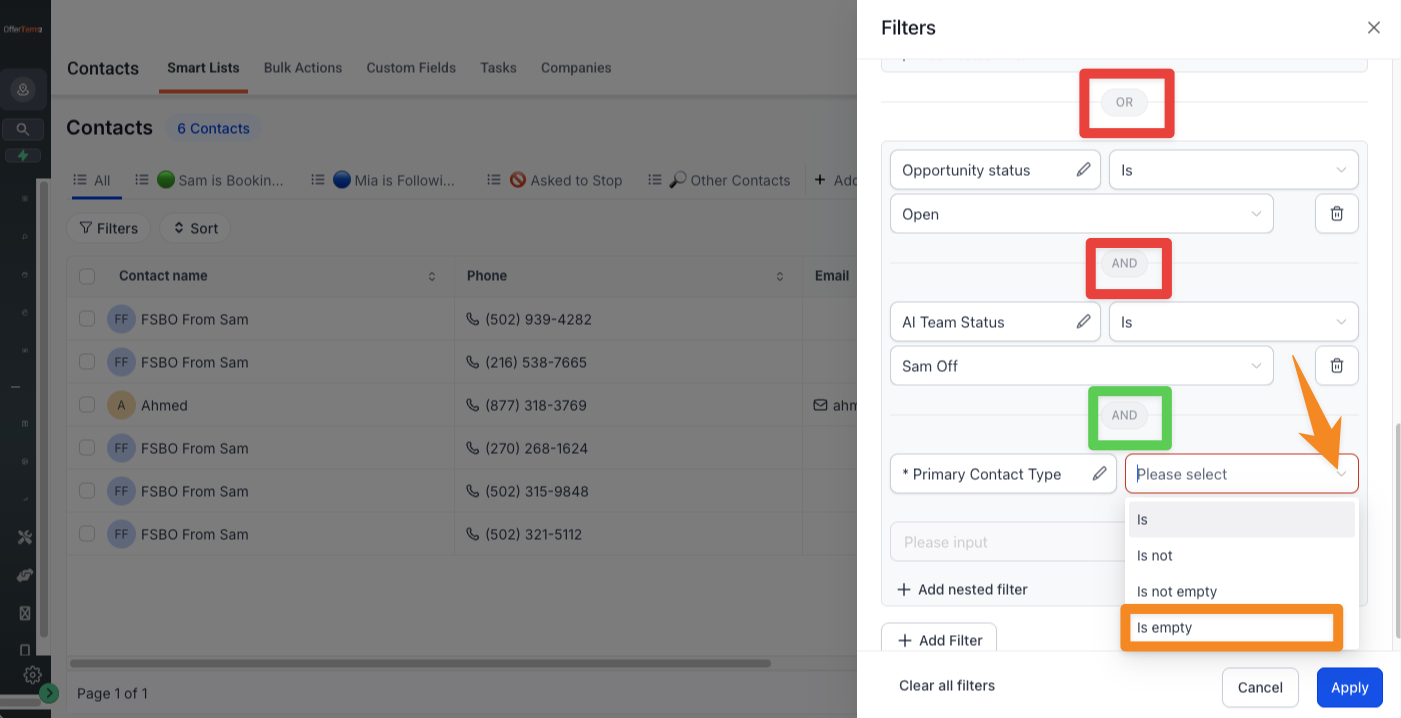
Step 4 instruction. your copy
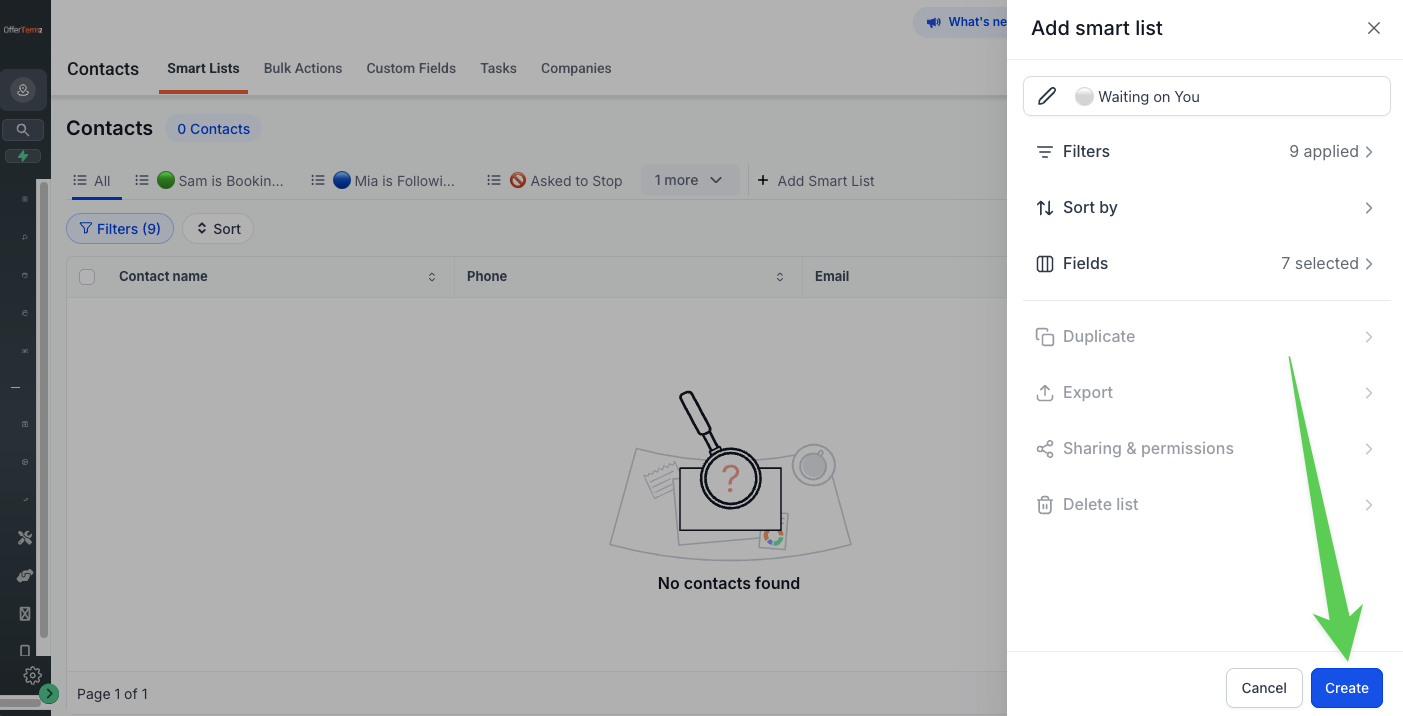
Closing line for this list, and for the whole set. your copy
Click All List. That puts you back on a clean slate — a fresh filter to build the next list from.